Installation#
Installing NucleI takes three things: an account on the TerraQuantTech portal, a licence file, and the installer.
1. Register#
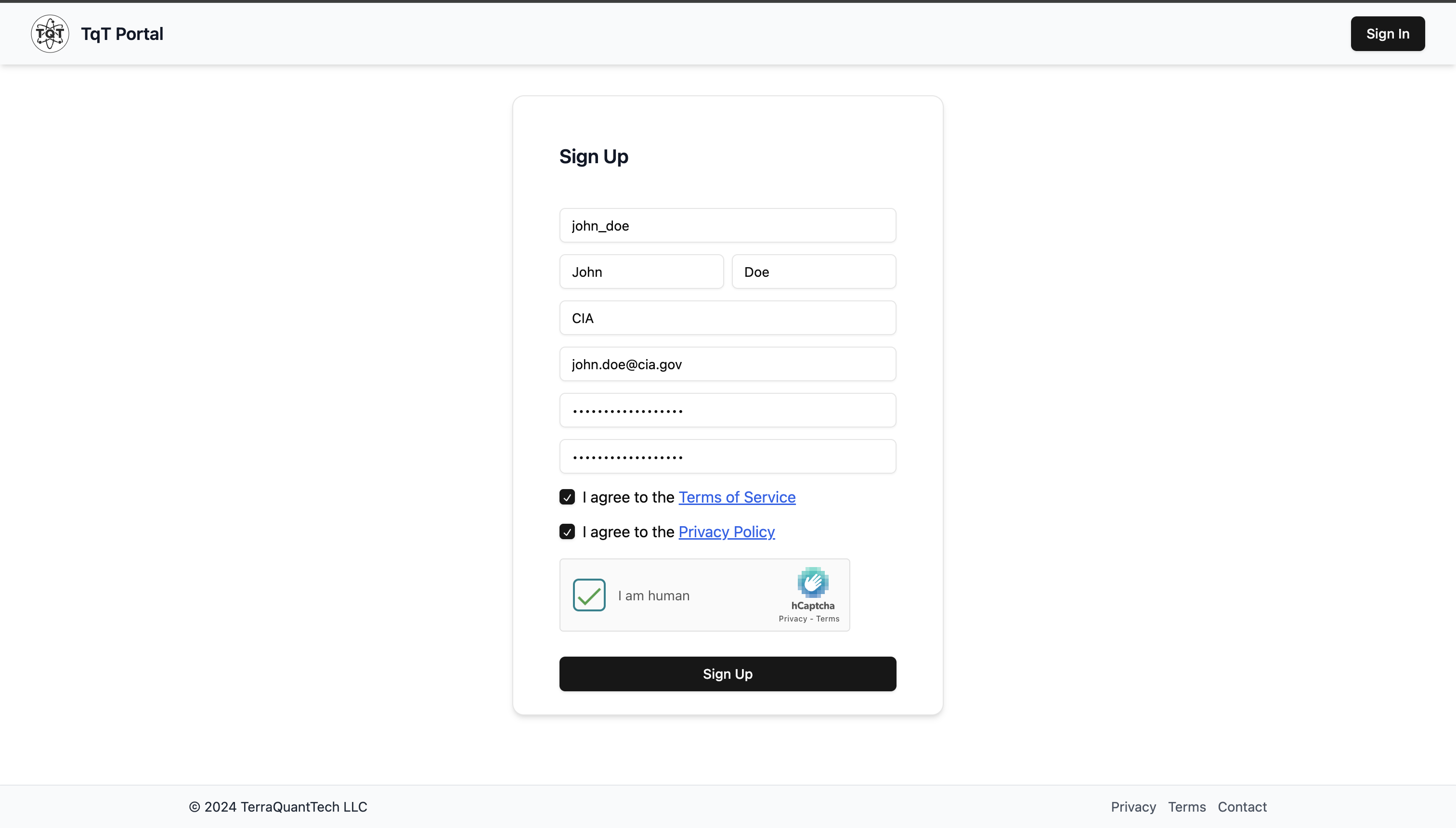
Go to terraquant.tech and create an account.
2. Get a licence#
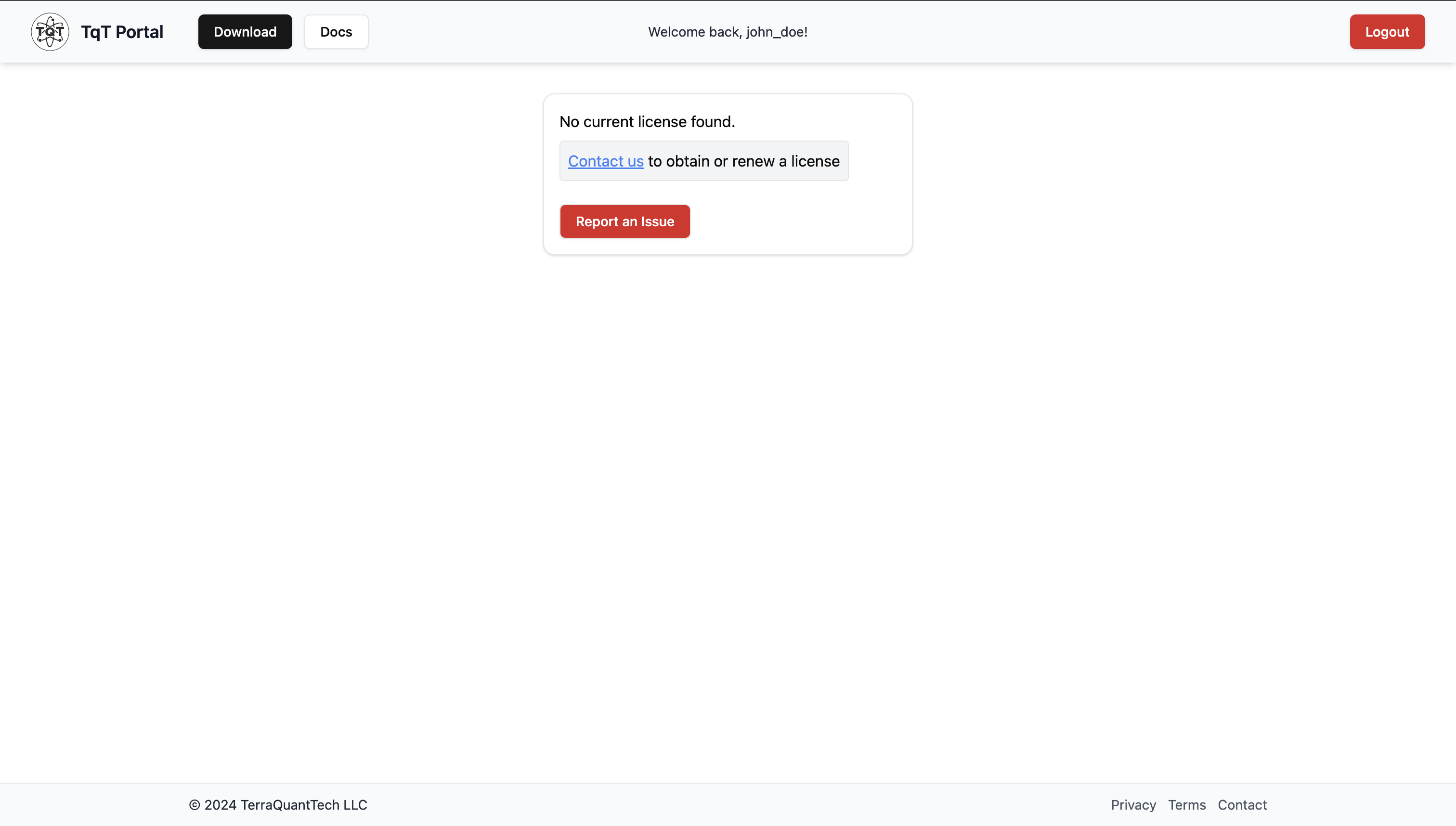
The software needs a valid licence to run. Either ask your administrator for a trial licence, or buy a full one from the licensing section of the portal.
Once the licence is granted, download the licence file — it has a .tl extension — from your account page.
3. Download#
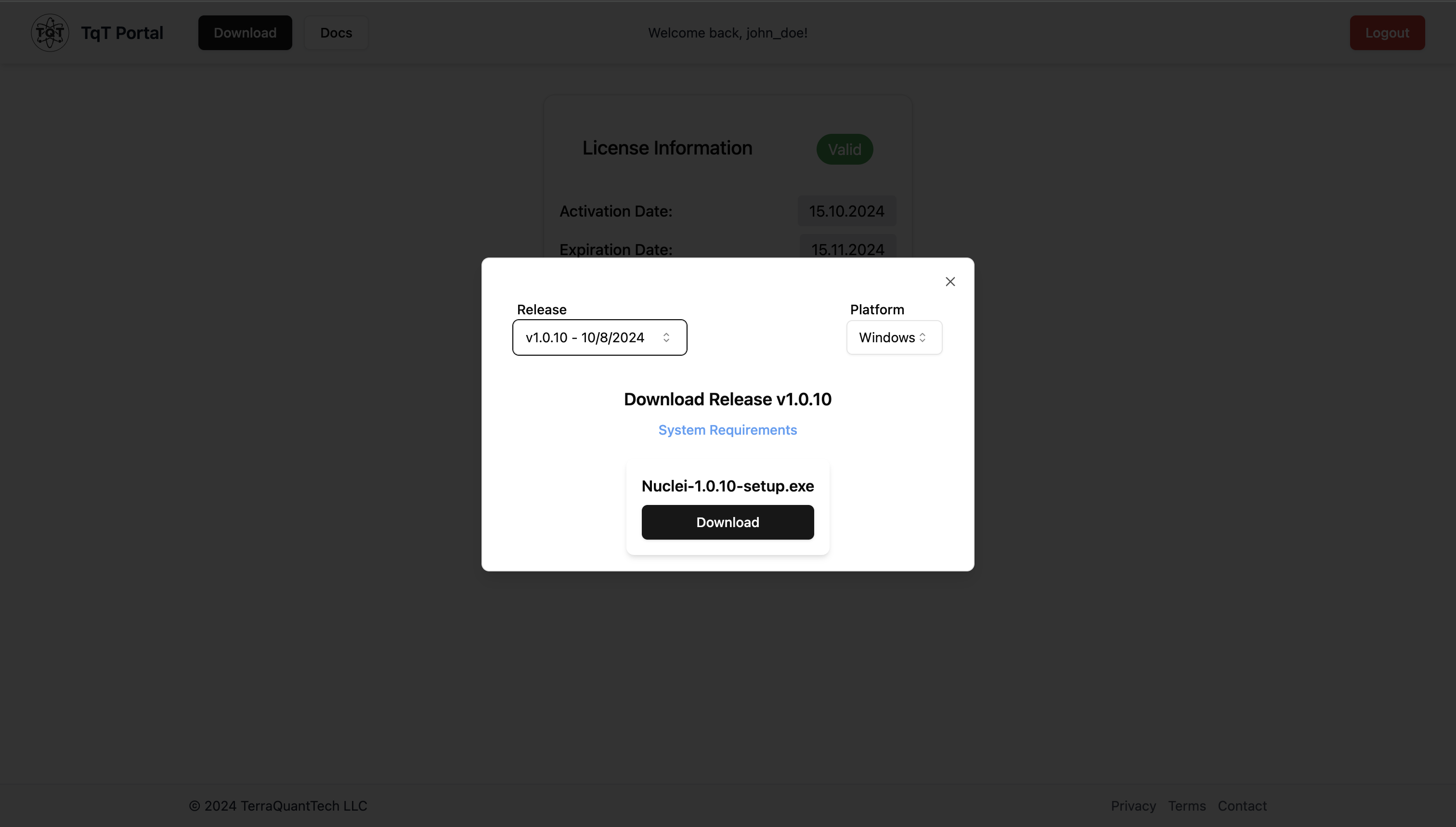
Open the Download section in the portal header, select the release for your operating system, and press Download.
4. Install#
Run the installer and follow the prompts.
- Windows — double-click the
.exeand follow the setup wizard. - macOS — open the
.dmgand drag the application into Applications. - Linux — install the
.debor the pacman package; see Linux.
On first launch the app asks you to sign in with your portal account, which downloads and activates the licence for you. On a machine without internet access, or if sign-in fails, choose Or activate from file and point it at the .tl file you downloaded.
If your lab's licence holder has linked their licence to your organisation, signing in as a member activates the app on that computer too — no separate licence needed. The licence stays the holder's: people joining or leaving the organisation changes nothing about computers that are already activated.
Linux#
The Linux release is built as a .deb package (Debian, Ubuntu) and a pacman package (Arch). Both install the app under /opt/NucleI, add a nuclei command and a desktop entry, and register the .nuclei data file type so that double-clicking a data file opens it in the app.
Replace the file name with the one you downloaded. Start the app from the application menu or with nuclei.
Note
The package installer configures the application sandbox for you, including on Ubuntu 24.04 and later. If the app does not start after installing, reinstall the package rather than changing permissions by hand.
The tray icon of the background scheduler needs an AppIndicator package. Without it no tray icon appears on a Wayland desktop.
Next step: Connection — connect the NMR device to your computer.
Minimum system requirements#
| Component | Requirement |
|---|---|
| Operating system | Windows: 10 or later macOS: 12 (Monterey) or later, Intel or Apple silicon Linux: a 64-bit distribution with glibc 2.31 or later and GTK 3, such as Ubuntu 22.04 or later, Debian 12 or later, or current Arch |
| Processor | Intel Core i3 or later |
| RAM | 4 GB minimum, 8 GB recommended |
| Disk space | 1.5 GB available |