Home#
The Home page connects the instrument and tunes it. Work through its tabs before recording anything: an untuned instrument produces data that no amount of processing will rescue.
Connecting#
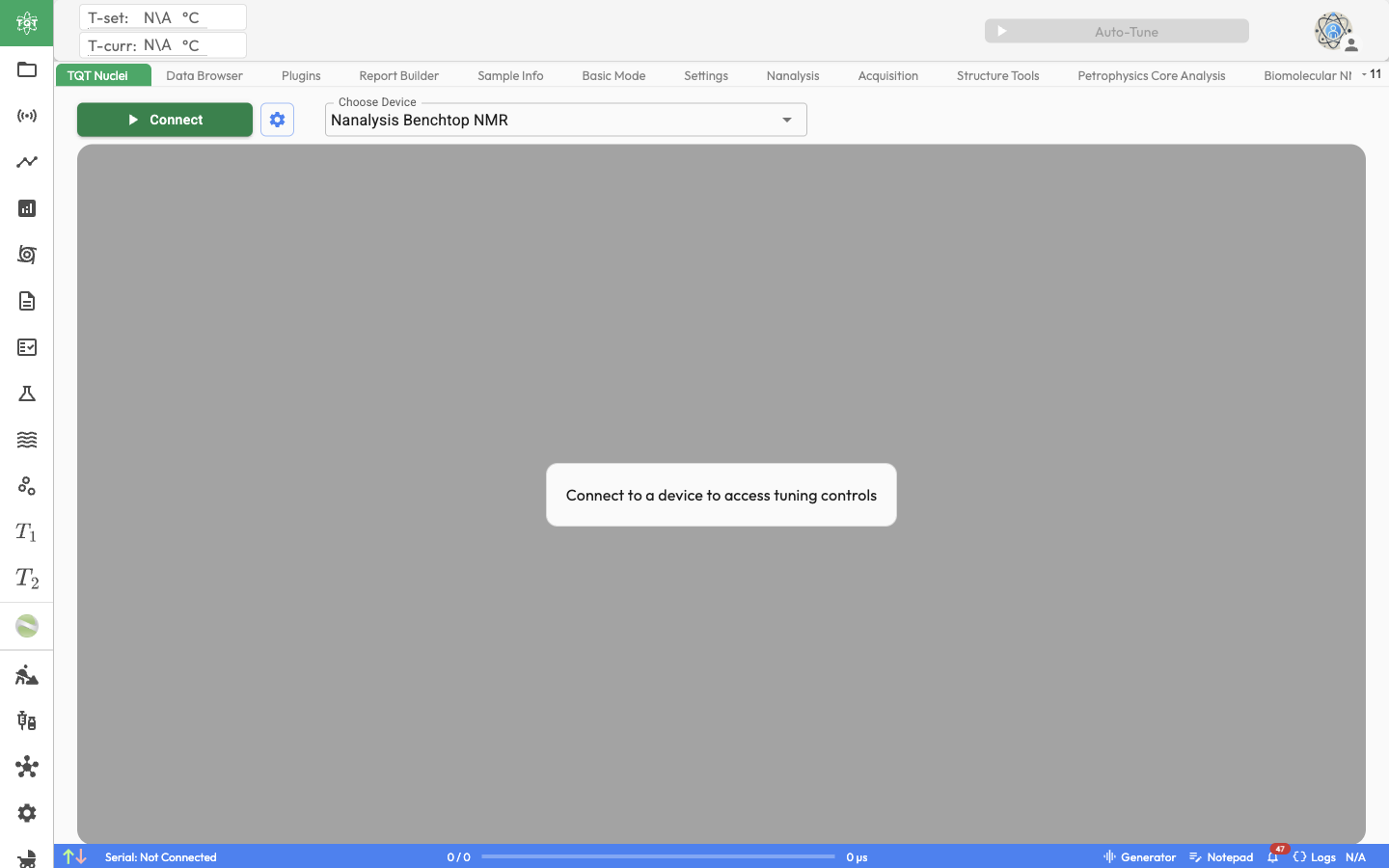
Choose Device selects an instrument; Disconnect releases it. Until a device is connected the tuning controls are dimmed and the page says so.
The temperature readout in the app bar shows the target temperature (T-set) and the current one (T-curr). Wait for the two to agree before tuning — see Preparation.
Tuning tabs#
The tabs you see depend on the instrument. Each tuning operation declares a device capability, and an operation the connected device cannot perform is not offered. A device supporting only one operation gets no tab bar at all. On a spectrometer with the full set, four tabs appear:
| Tab | What it finds | Controls |
|---|---|---|
| Frequency | The resonant frequency of the circuit, matched to the nucleus under study. | Search centre, window radius, number of points, and Quick Tune. |
| Dead Time | The ringing time of the resonant circuit — the recovery period after a pulse, before the signal can be detected. | Acquisition time. |
| Duration | The pulse duration that gives the intended flip angle. | Start duration, max duration, step, acquisition time, and a quick (0–180°) or full (0–360°) scan. |
| Phase | The phase angle giving the best signal response. | Number of steps, acquisition time. |
Each tab plots the tuning sweep — amplitude against frequency, time, pulse duration or phase angle — and marks the optimum it found. Press START to run the sweep with the parameters shown.
AUTO TUNE runs the operations in sequence with their default parameters. Use it for a routine start; use the individual tabs when a sweep needs a wider window or more points.
The results are written to the device settings, where you can inspect or override them on the Settings page.
Status bar#
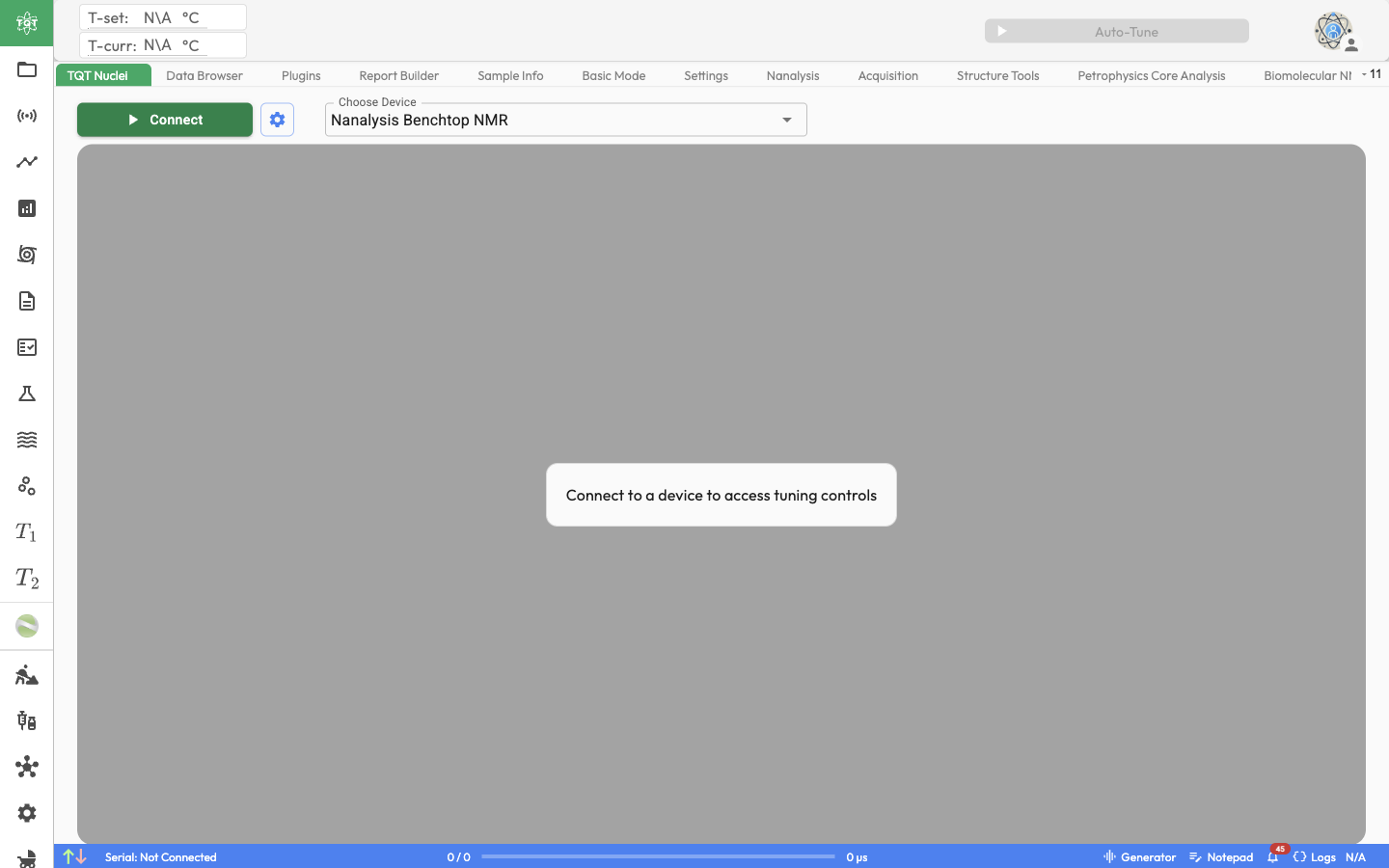
The status bar along the bottom of the window reports the serial connection, the progress of the current run, elapsed time, and the current operating frequency. Logs opens the application log — attach it to any issue you report from the Help page.
Next#
With the instrument tuned, move to Acquisition.