Help#
The Help page is where you find the documentation, check what version you are running, and report a problem.
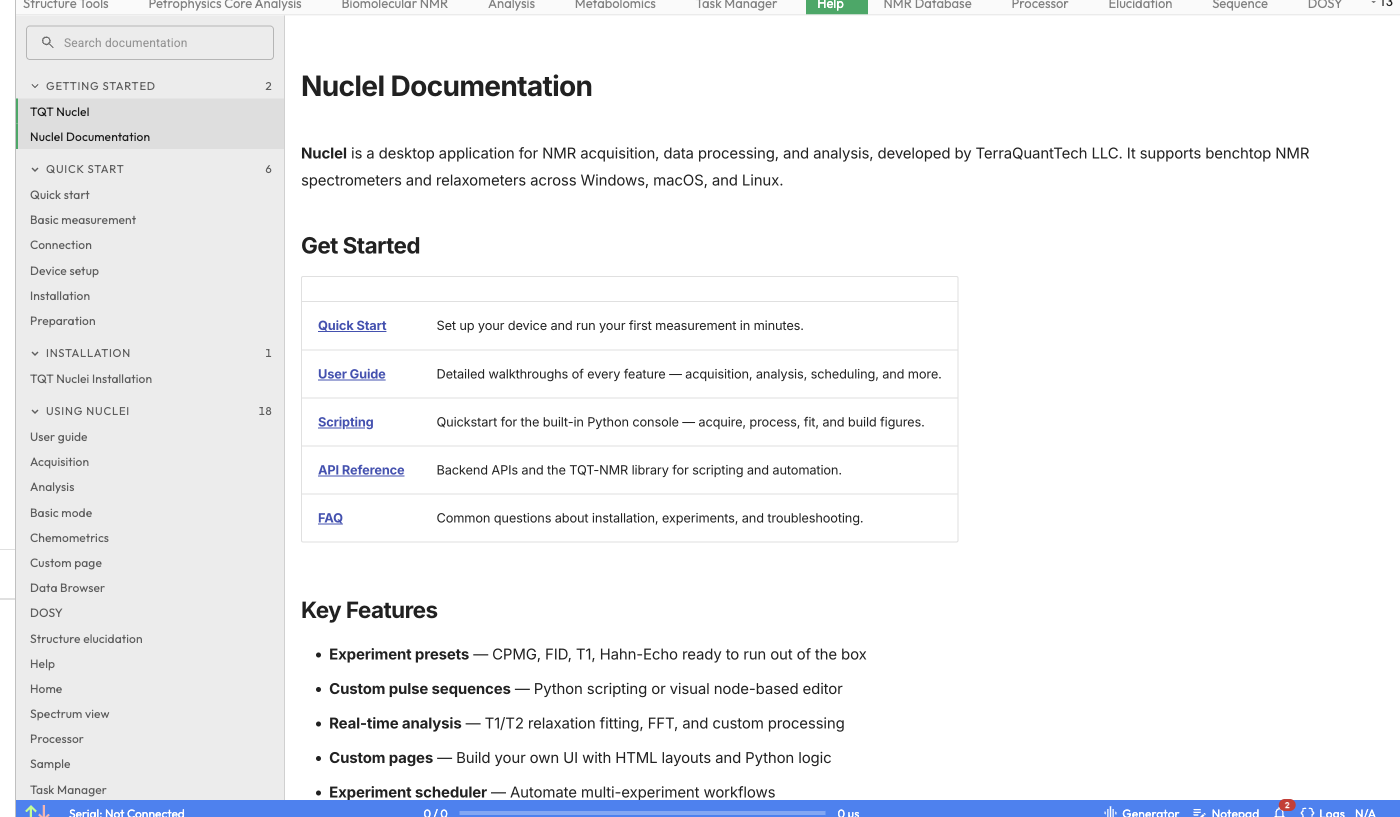
Documentation#
The documentation is bundled with the app and works offline.
- Help home offers shortcuts to sample data, your first measurement, analysis guides, Python recipes, troubleshooting, and the glossary. You can also replay the guided tour or open keyboard shortcuts.
- Search documentation searches article titles and contents. Select a result to open the matching article or heading. Use the clear button or press Escape to clear the search.
- The topic list follows the public documentation's sections. Expand a section to browse it; the current article is highlighted as you follow links.
- On this page lists the headings of the current article, including when the reading pane is too narrow for a sidebar table of contents.
- Help home in the reader toolbar returns to the shortcuts. In narrow panes, All topics switches back to the topic list.
The toolbar's Open in a separate window action opens the bundled documentation. The online version is at terraquant.tech/docs.
Toolbar#
| Button | What it does |
|---|---|
| Replay guided tour | Runs the quick tour on a demo project. It asks first, saves your unsaved changes if you agree, and reopens your own project when the tour ends. |
| Keyboard shortcuts | Lists every shortcut, including the navigation ones. The same list opens anywhere with Ctrl+/ (Cmd+/ on macOS). |
| What's new | Shows the release notes for your version. |
| About | Shows the version, the connected device and the analysis engine status, with a button that copies them for a support request. |
| Report an issue | Opens the support page on terraquant.tech in your browser. |
Report an issue#
The dialog lists exactly what is sent with the report: the app version, system information, your profile ID and name, your account email and a sign-in token when you are signed in, and the first and last startup log lines when the report comes from a startup failure. When reporting a problem, include:
- A description of what happened and what you expected.
- Steps to reproduce the problem.
- The log file (see below).
- Your software version (shown under About).
Log files#
The application logs detailed information about every operation. To access logs:
- Click Logs in the status bar at the bottom of the main window.
- Log files are stored locally and include timestamps, device communication details, and error traces.
Before contacting support
Always attach the log file when reporting issues. It dramatically speeds up diagnosis. You can also check it yourself — search for "ERROR" or "WARNING" entries near the time the problem occurred.
See also#
- Troubleshooting — solutions to common problems
- FAQ — frequently asked questions